3 in 1 CarPlay & Android Auto TV Adapter
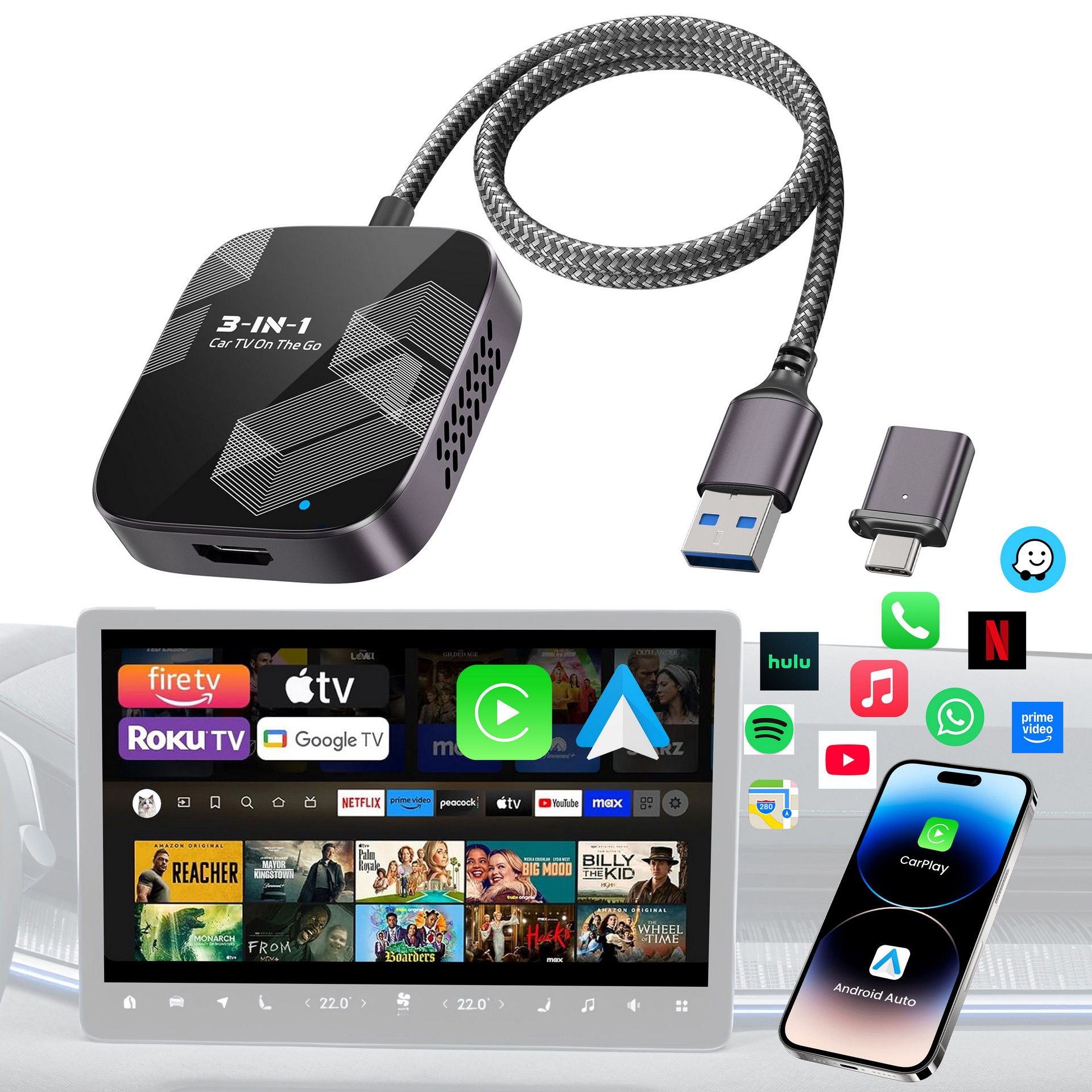
· HDMI Connection
Step 1: Start the car and wait for the car engine system to load.
Step 2: Connect the adapter to the car's USB-A or USB-C port and then go to the selection interface. Click "HDMI" and the screen will display "No Signal."
Step 3: - Streaming device: Insert the HDMI male connector of the TV stick/Set-top box/Game console into the HDMI female port of the adapter, and provide power to the input device. (*Note: Streaming devices require an internet connection.)
- Screen thrower: Insert an HDMI to HDMI cable/Lightning to HDMI cable/USB-C to HDMI cable, and you can mirror the screen of your computer/iPhone/Android phone to the car display. (*Note: Mobile devices need to support video output.)
Step 4: After a successful connection, wait for the system to enter the interface automatically.
· CarPlay Connection
Step 1: Start the car and wait for the car engine system to load.
Step 2: Connect the adapter to the car's USB-A or USB-C port and then go to the selection interface. Click "CarPlay" to enter the guide page.
Step 3: Turn on Bluetooth and Wi-Fi on your iPhone, ensuring they are not connected to other devices.
Step 4: Connect to the Bluetooth signal "Car-Play-XXXX" and pair. (No need to connect to Wi-Fi, just keep it on.)Step 5: After confirmation, wait for the system to enter the CarPlay interface automatically.
User Guide Download
FAQs

Connect your iPhone to your car by USB data cable and see the Carplay logo on your car display. Or search the official Carplay website to see if your car is compatible.
Because video transcoding is more complex than normal audio file transcoding and takes longer to process, the sound will be delayed as a normal problem with car multimedia and CarPlay, not the adapter's problem. If there is no sound, please try unplugging and reconnecting the device.
Some Netflix subscription plans do not allow users to stream content from mobile devices to the TV. To function properly, you need to upgrade your subscription to either the Standard or Premium plan.
Due to rapid heat dissipation, the surface of the product may feel slightly hot as this is designed to protect the internal circuitry better. Rest assured, there is no danger involved as the product has passed our rigorous safety testing.
Because the car will not cut off all the power immediately when it is turned off, the light of the adapter will not go out immediately, but it will take a while. Please rest assured that its power consumption is minimal and will not drain the car battery.